SportCalendar help
Guides
Use these guides to understand how feeds work, how to subscribe to your calendar, and how to set up shortcuts on your phone.
How feeds work
Filter, add, then let your calendar keep up.
Build your feed by choosing teams, sports, competitions, or individual fixtures. SportCalendar keeps your matching events updated from there.
Step 1
Filter the schedule

Filter by a team or a sport to narrow the schedule to just the events you want to follow.
Step 2
Choose a fixture or team
Sun 24 May
West HamLeeds

Use the plus buttons to add this fixture, West Ham, or Leeds to your personalised calendar feed.
How to subscribe
Add SportCalendar to your calendar
Subscribe once using your unique feed link. Your calendar updates automatically when you add or remove teams, competitions, or fixtures.
Your unique calendar feed URL:
Loading your calendar feed URL...
Open your calendar
Open the Calendar app on your iPhone. Tap Calendars at the bottom of the screen.
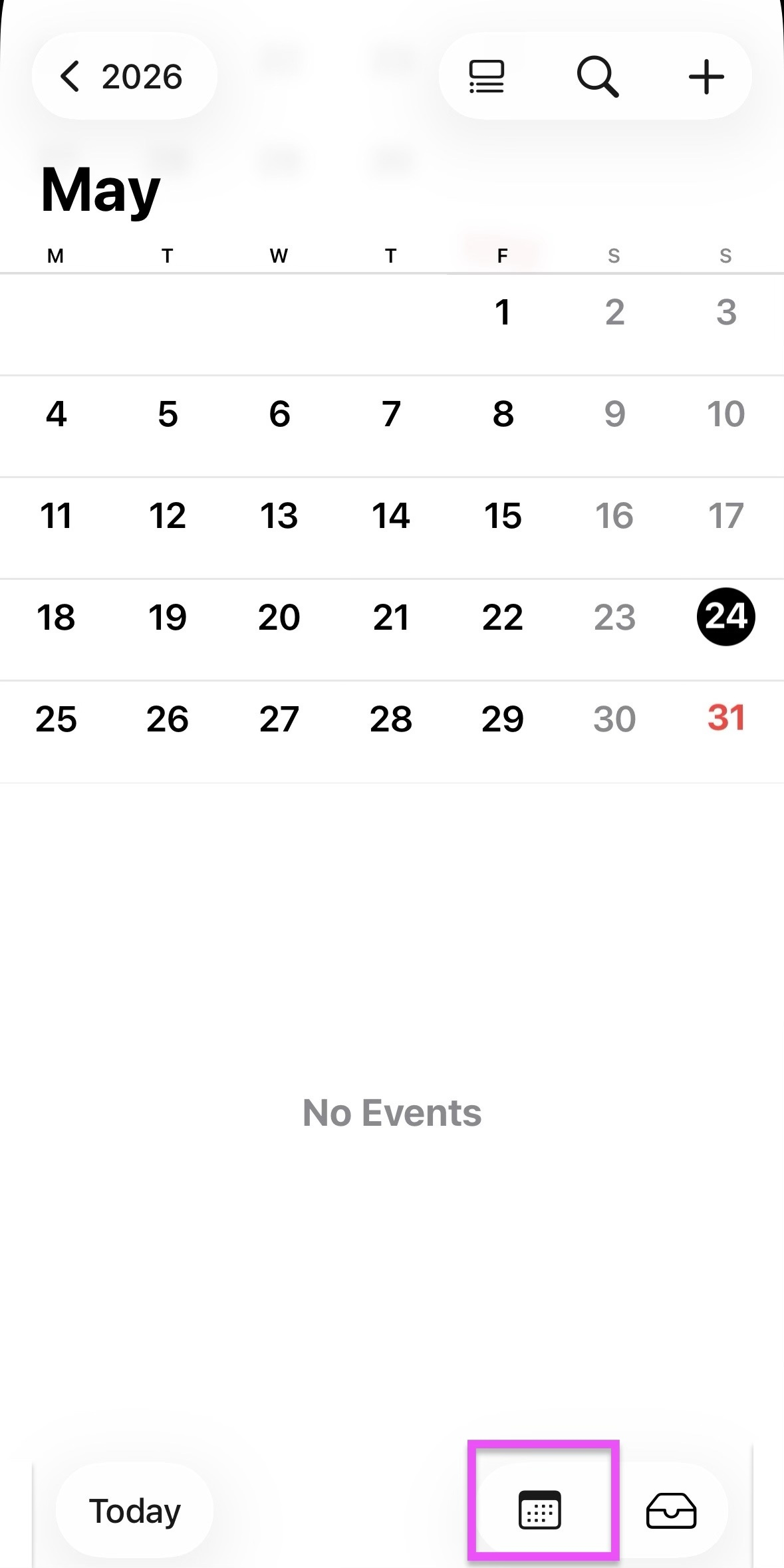
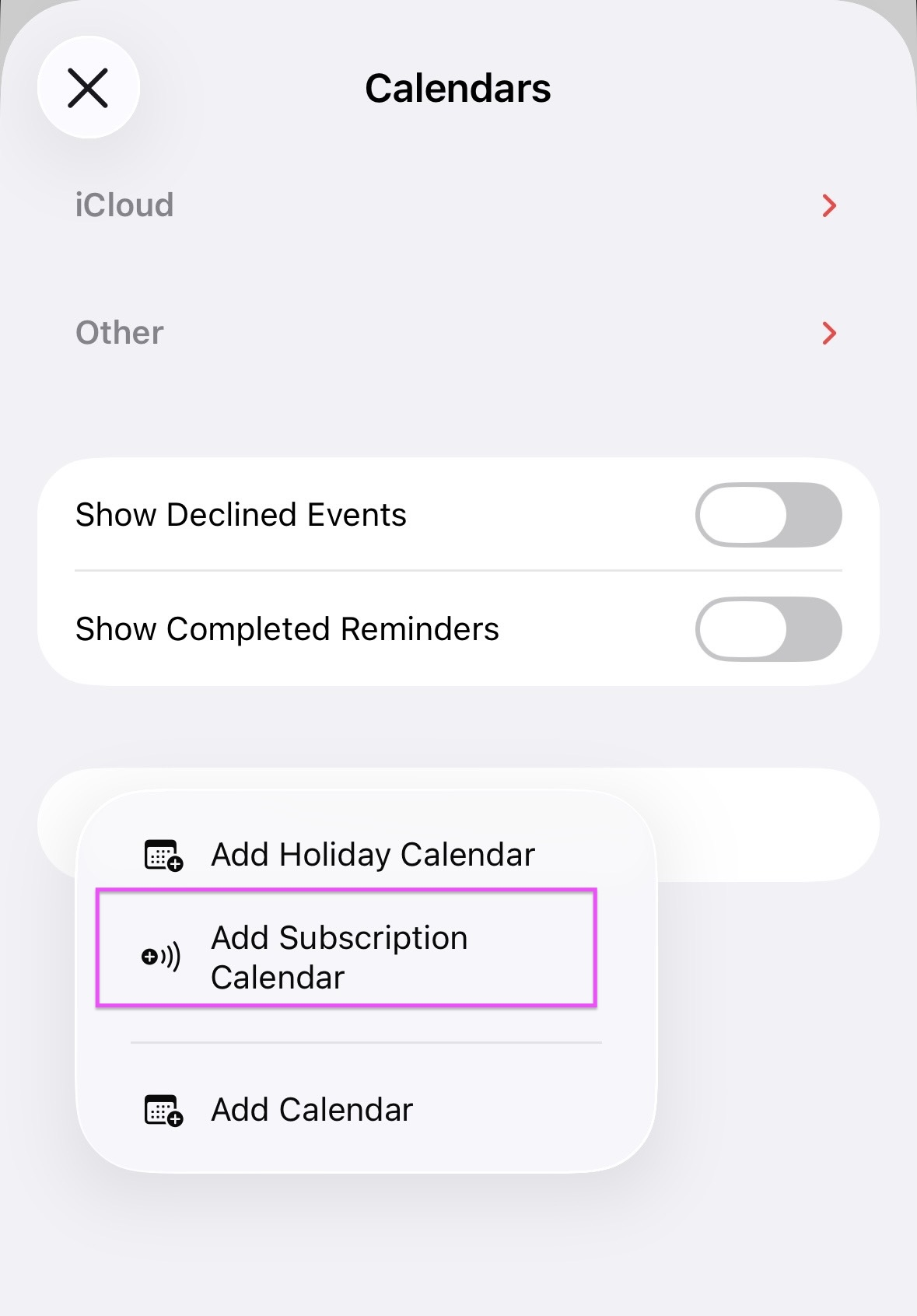
Add a subscription calendar
Choose Add Subscription Calendar. This allows your iPhone to stay synced with your SportCalendar feed automatically.
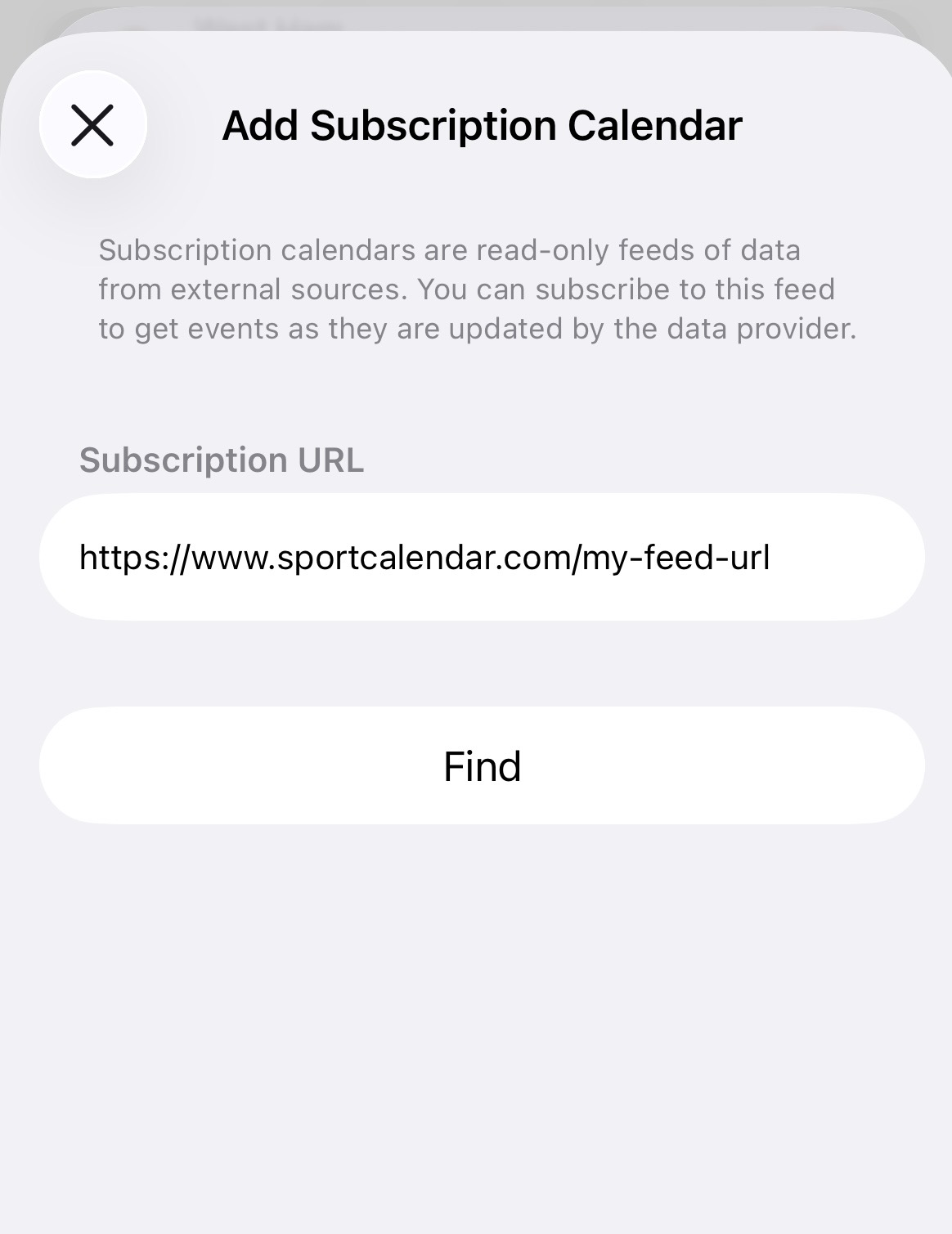
Add your unique calendar feed URL
Paste your SportCalendar feed URL into the Subscription URL field.
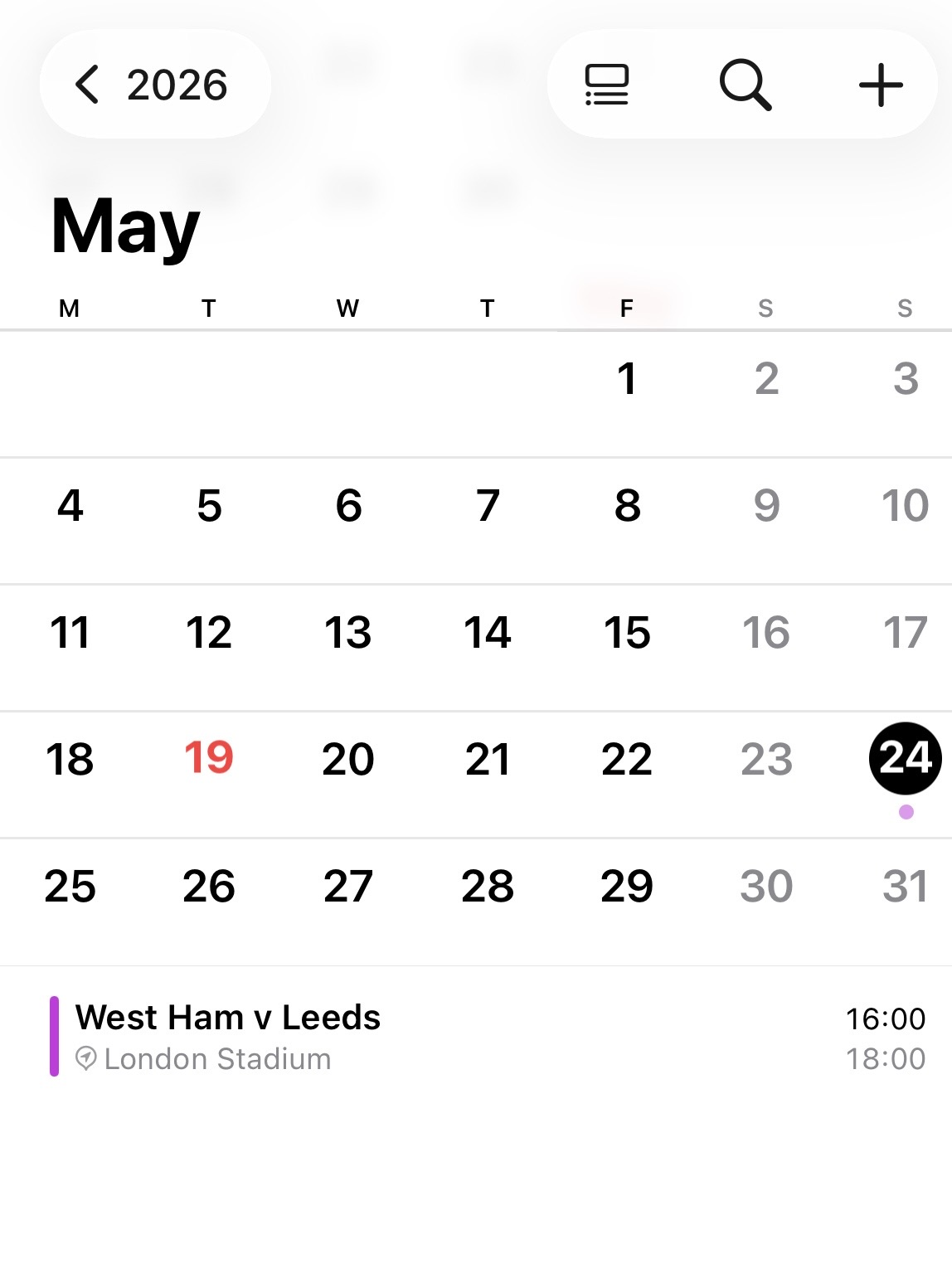
Events appear
Once subscribed, the fixtures matching your selected teams, competitions, sports, and events will appear in your normal calendar alongside the rest of your schedule.
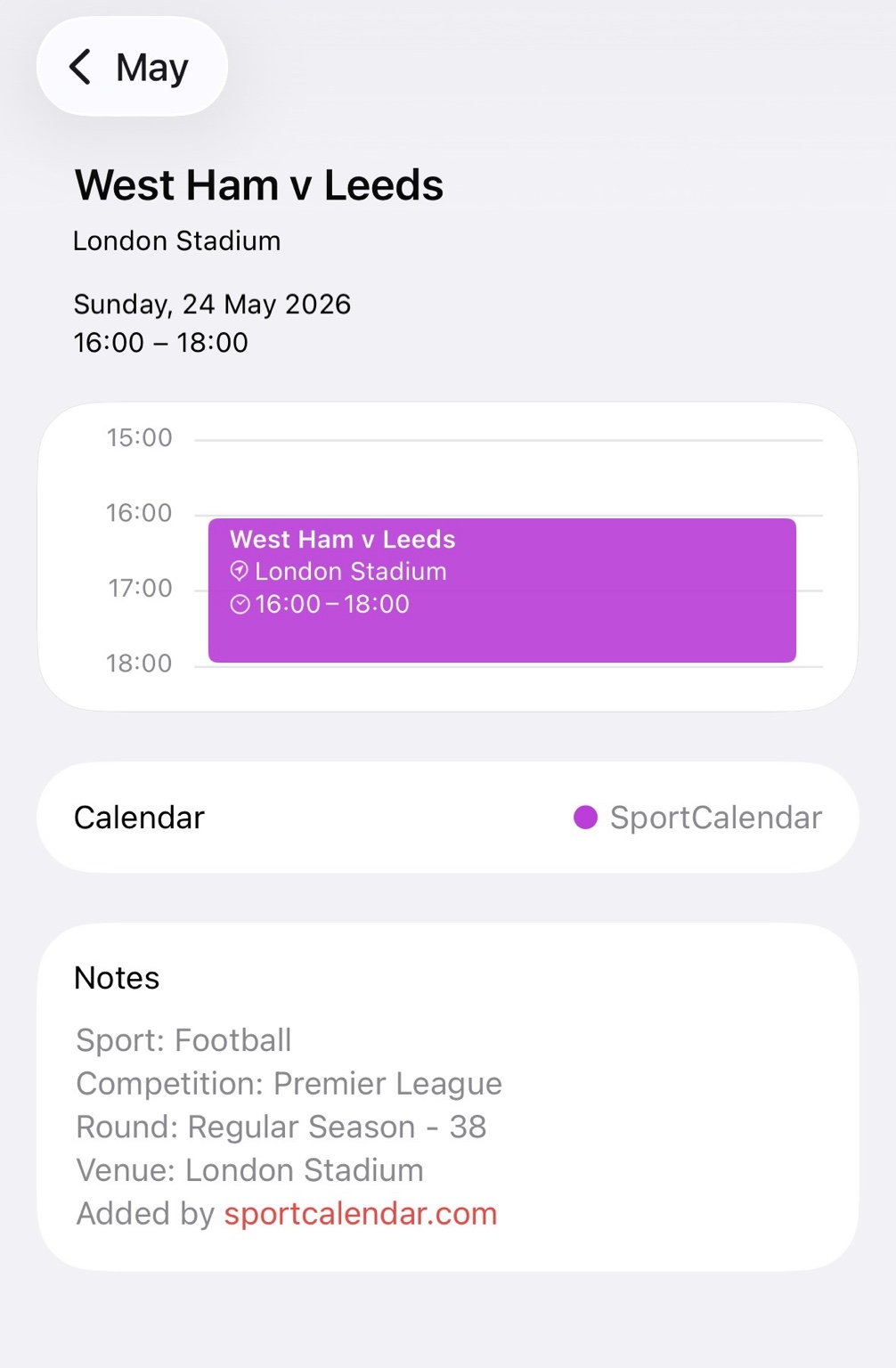
Open the details
Tap any fixture to see additional information including the teams involved, competition details, start time, and available broadcast information.
How to set up mobile shortcuts
Add SportCalendar to your phone home screen
Use these guides when you want quick access to SportCalendar from your phone home screen.
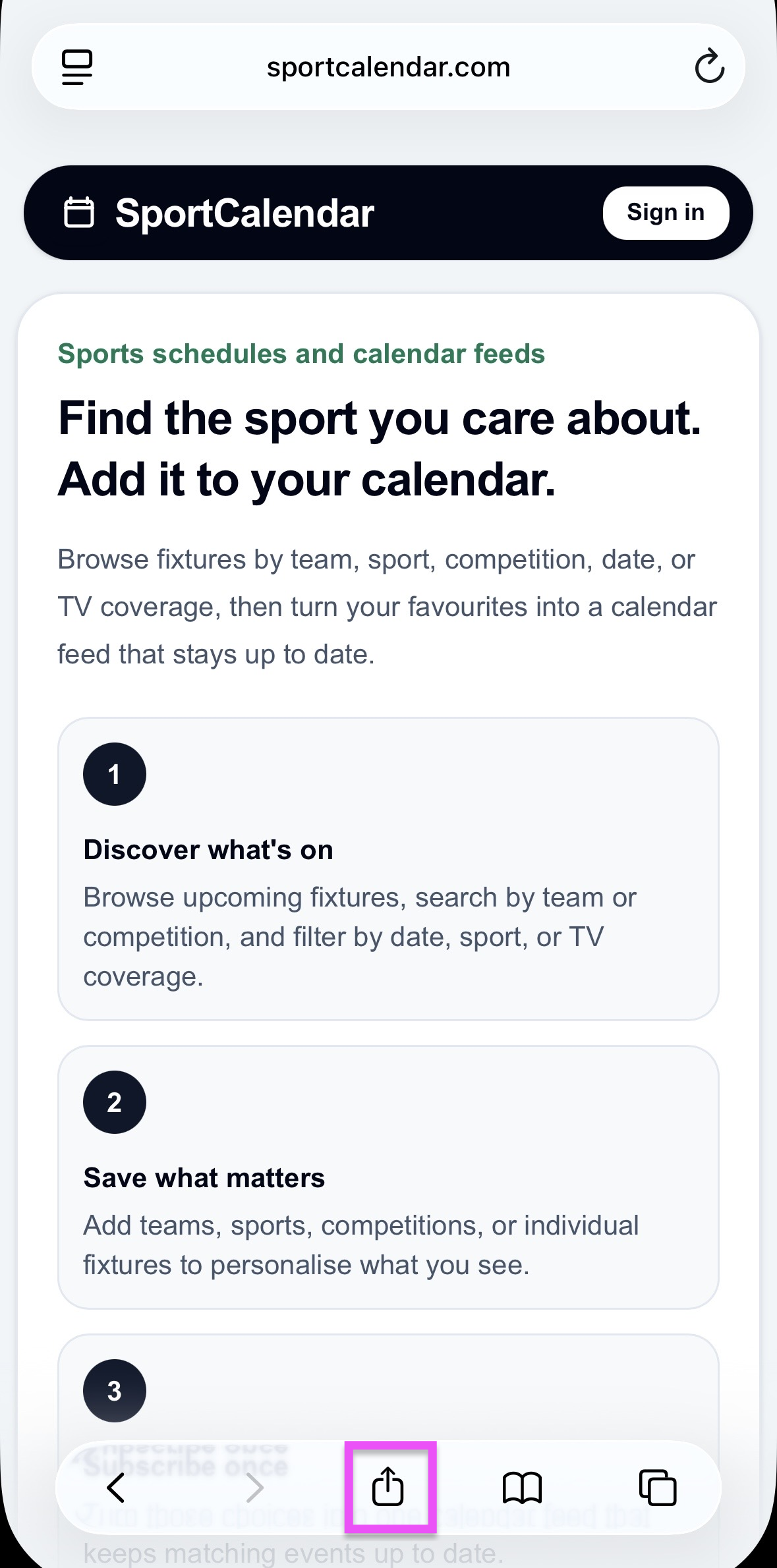
Open SportCalendar in Safari
Browse to the SportCalendar website on your iPhone using Safari. Once the page has loaded, tap the Share button in the toolbar at the bottom of the screen.
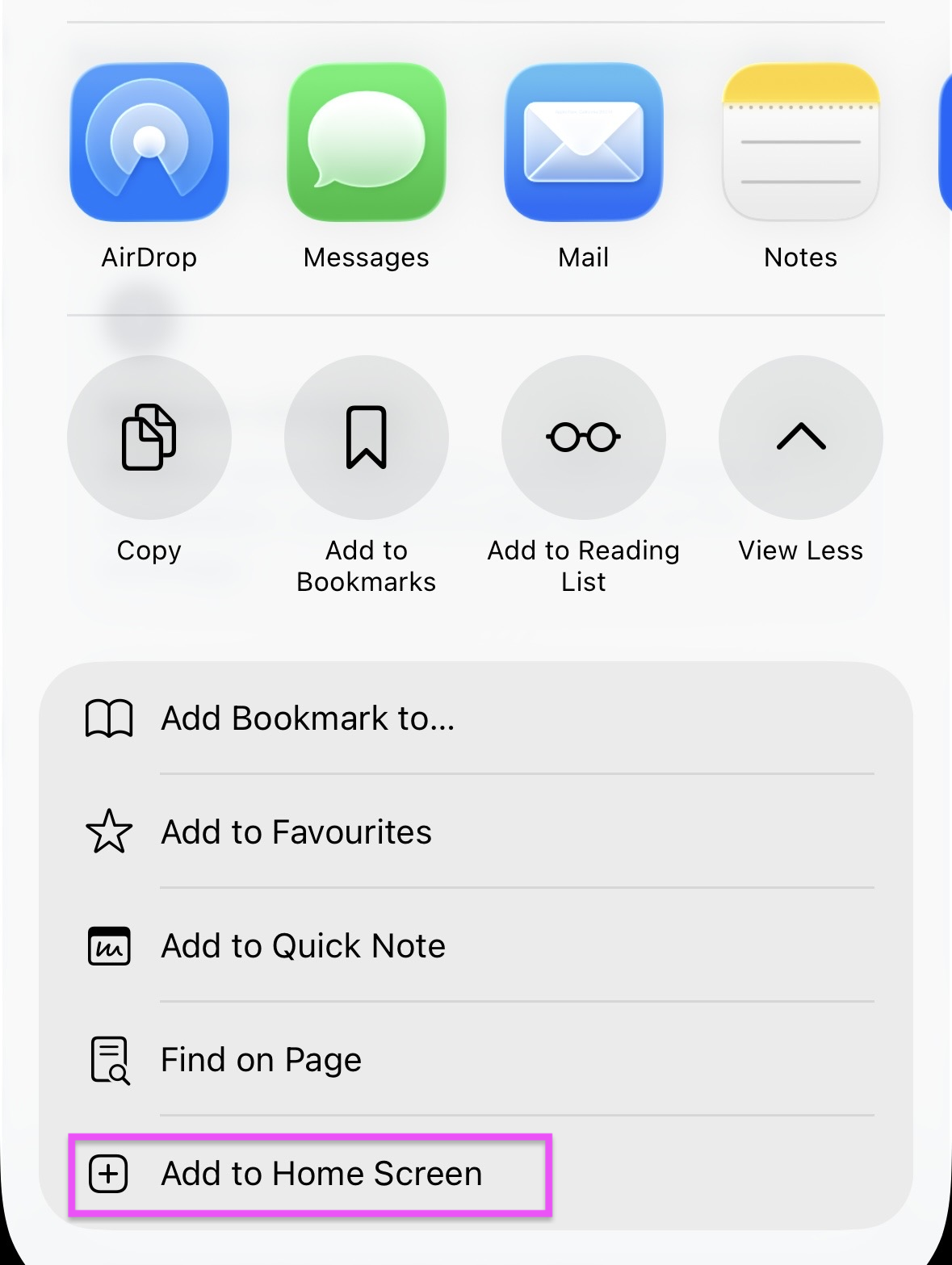
Select Add to Home Screen
Scroll down through the available actions until you see Add to Home Screen, then tap it to continue.
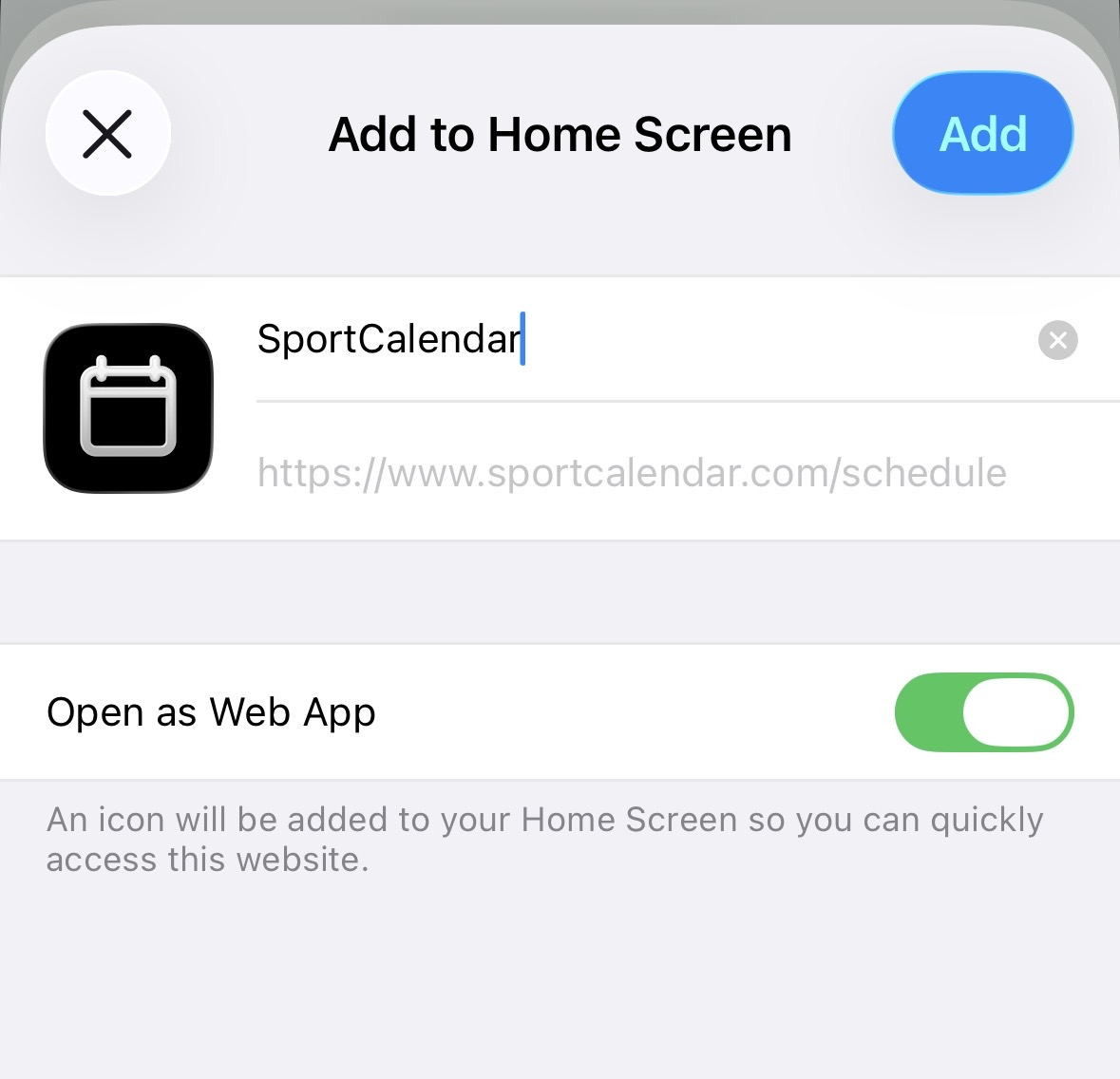
Add SportCalendar to your Home Screen
Confirm the name and tap Add. SportCalendar will appear on your Home Screen just like a normal app, giving you quick access to your personalised sports calendar.