Google Calendar guide
Sync SportCalendar with Google Calendar
Google Calendar subscriptions need to be added in a browser first. Once added to your Google account, you can show the same personal sports calendar in the mobile app.
Quick Answer
- Open Google Calendar in a browser
- Use Other calendars, then From URL
- Paste the ICS URL from SportCalendar Sync to Calendar
- On mobile, enable SportCalendar from Google Calendar settings
Start in your browser
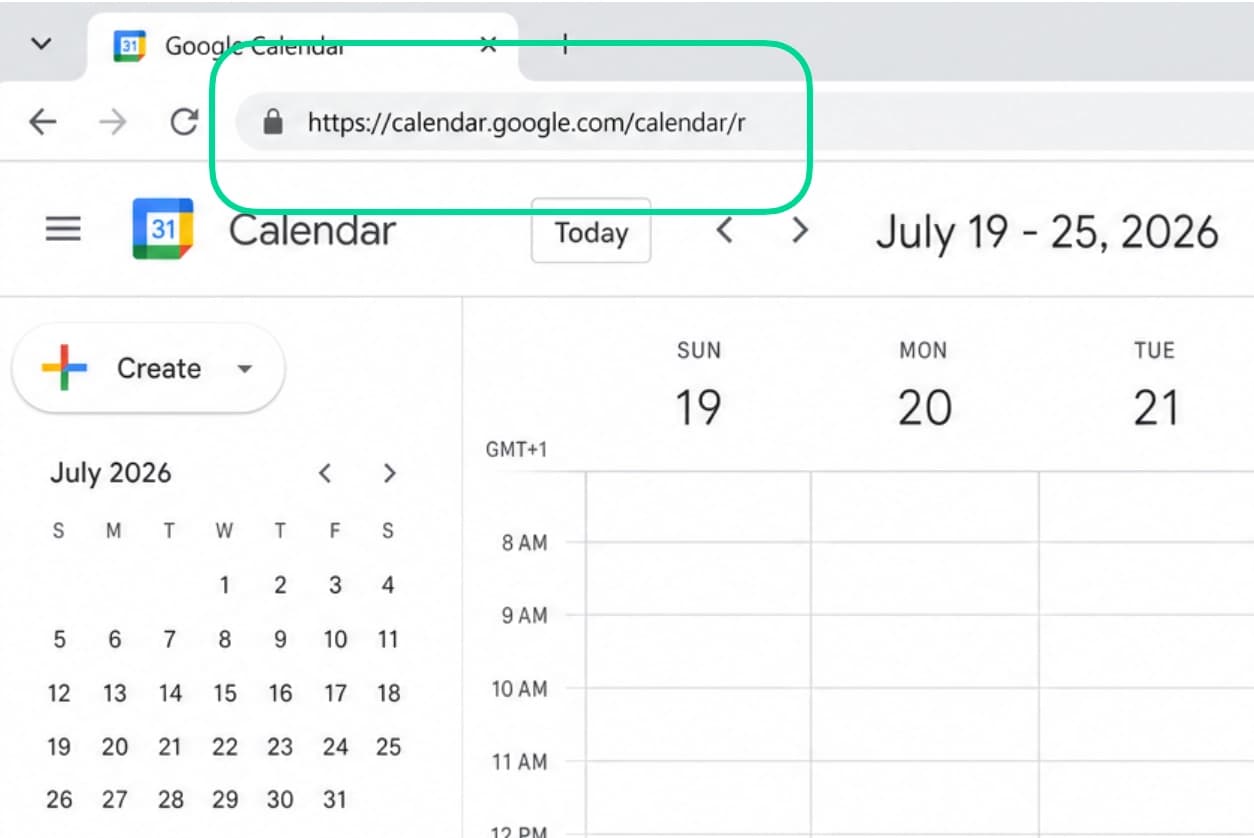
The Google Calendar app does not currently support adding a calendar subscription. Open https://calendar.google.com/calendar/r in a browser, then add your SportCalendar ICS URL.
Your calendar may look empty
If you have not created any rules or selected any favourites in SportCalendar yet, there may be no fixtures for Google Calendar to display.
Add SportCalendar in Google Calendar on the web
This first step adds the SportCalendar subscription to your Google account.
- 1
Open Google Calendar in a browser
The Google Calendar app does not currently support adding a calendar subscription. Start in a browser at https://calendar.google.com/calendar/r.
- 2
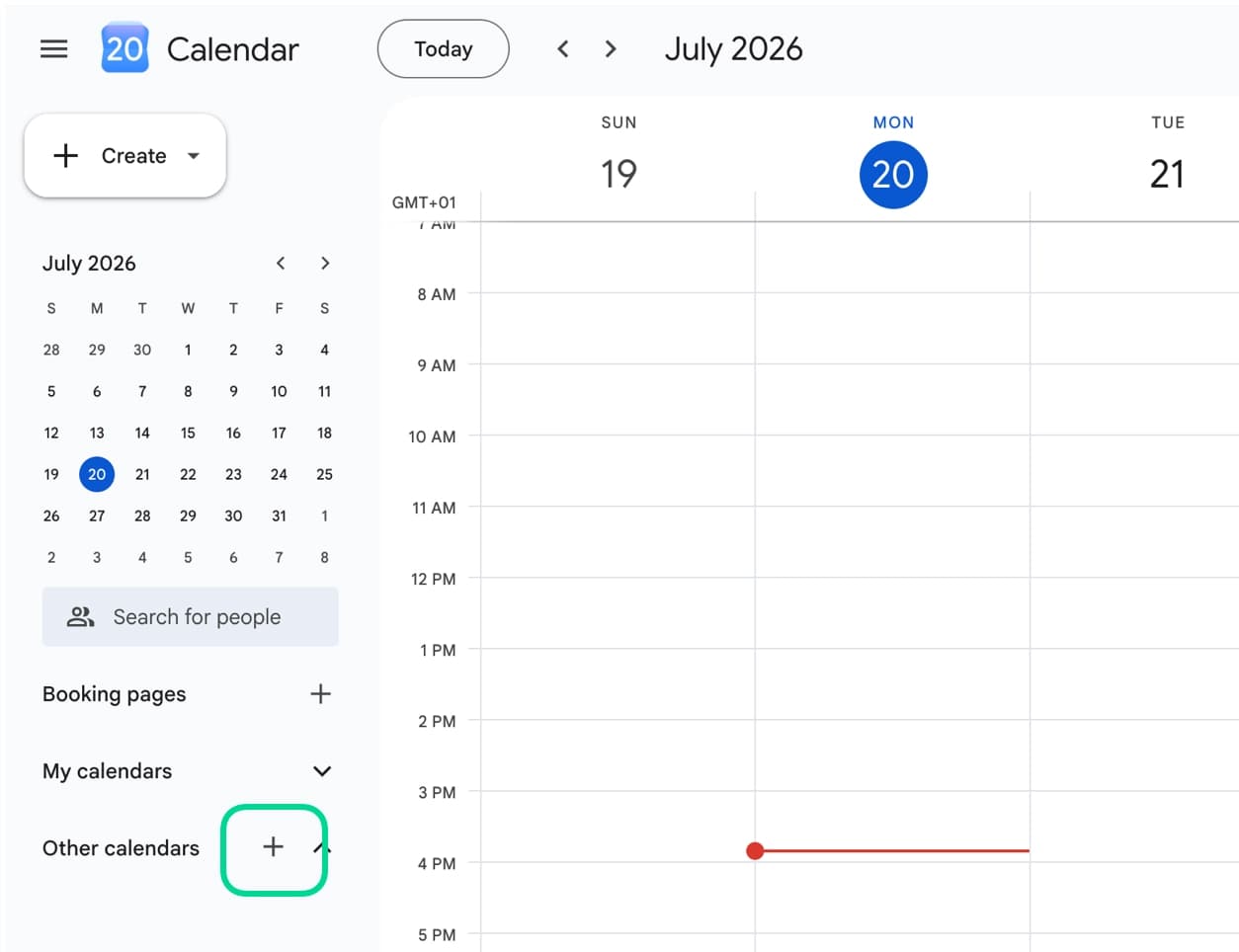
Choose Other calendars
In the left-hand menu, find Other calendars and click the plus icon.
- 3
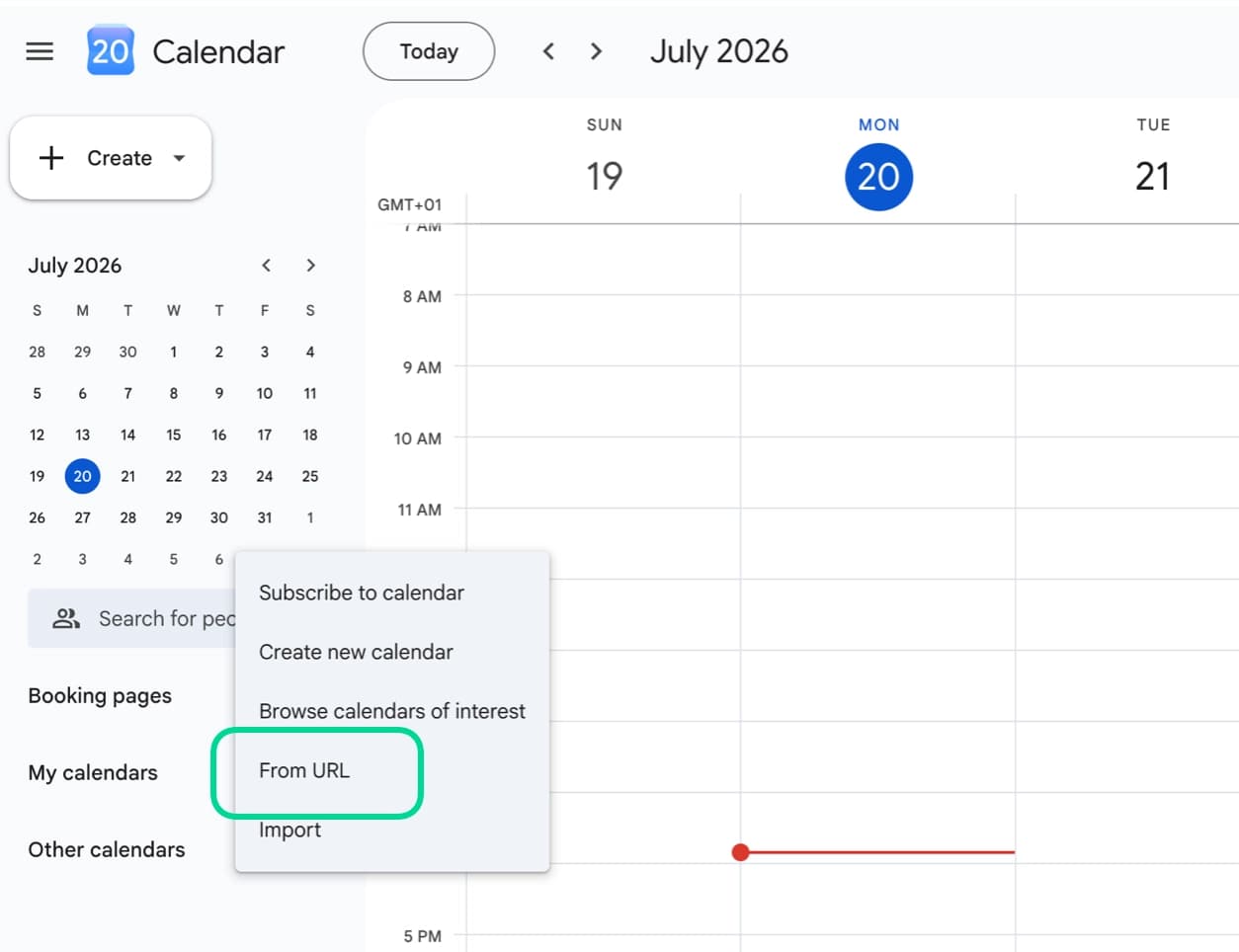
Choose From URL
When the menu opens, choose From URL so Google can subscribe to your SportCalendar feed.
- 4
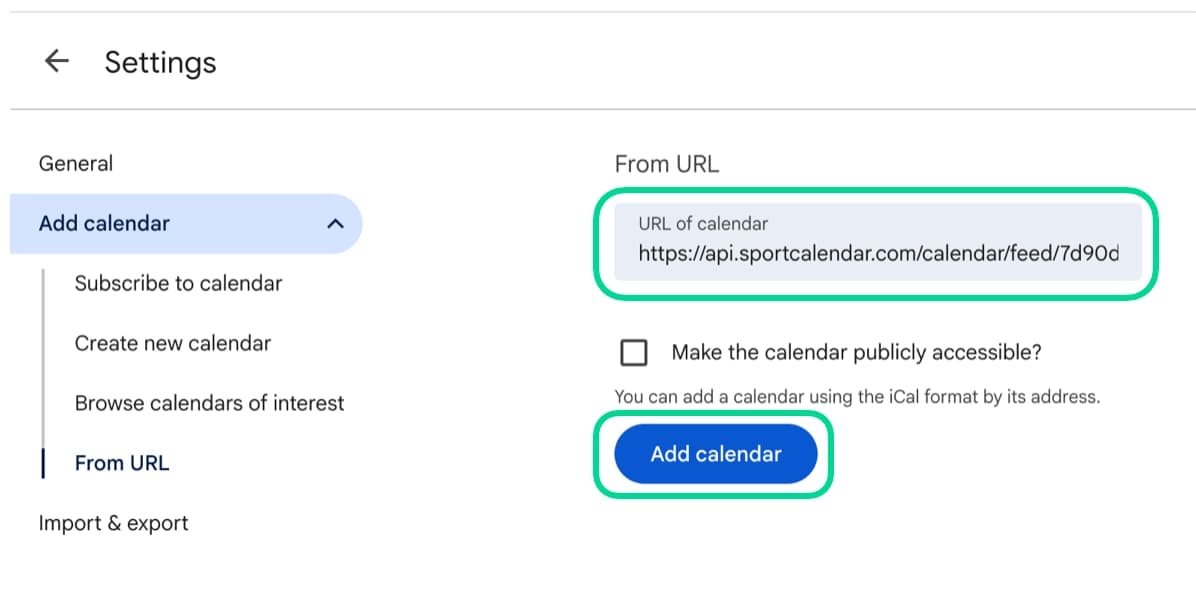
Paste your SportCalendar ICS URL
Copy the ICS URL from SportCalendar Sync to Calendar, paste it into the URL field and click Add calendar. Do not select "Make the calendar publicly accessible?".
- 5
Refresh and check for fixtures
Refresh Google Calendar. If you have SportCalendar rules or favourites, fixtures should appear on their event dates.
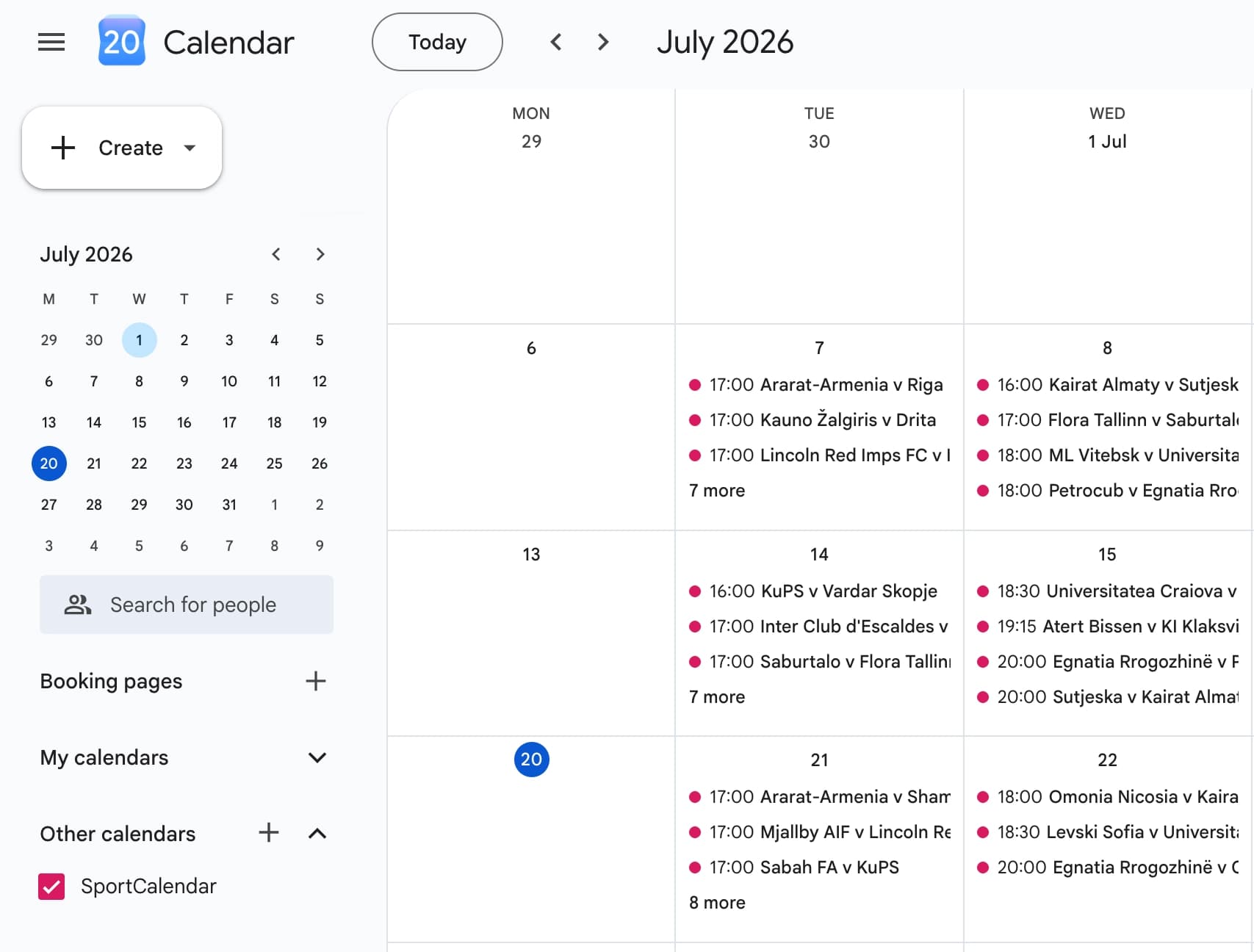
Show SportCalendar on Android
After the web setup is complete, use these steps only if the SportCalendar calendar does not appear or sync on your Android device.
- 1
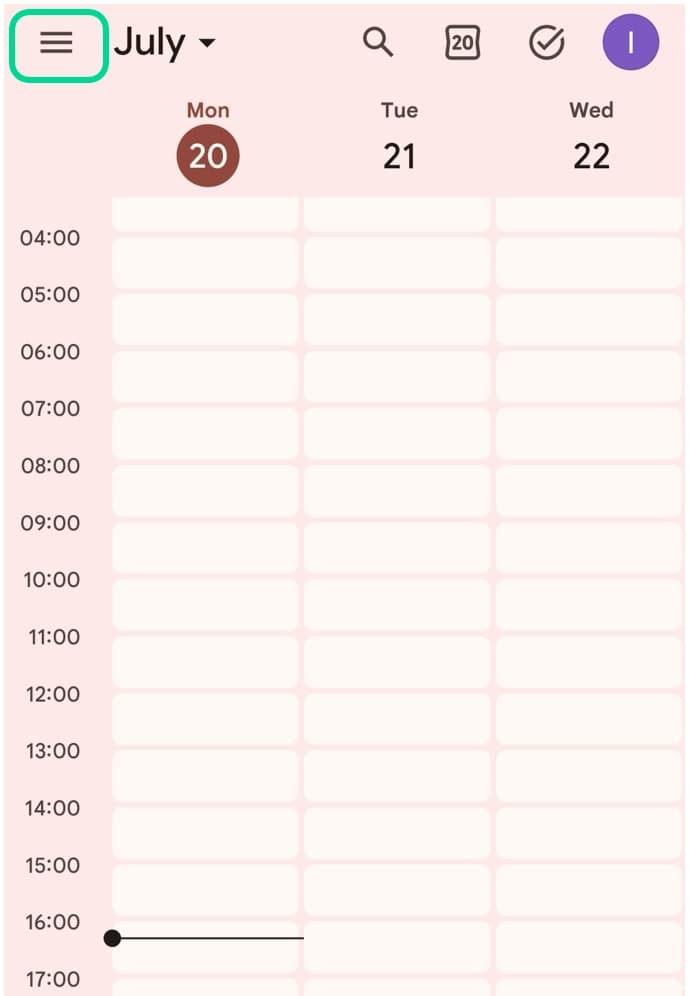
Open the Google Calendar menu
On Android, open Google Calendar and tap the three-line menu.
- 2
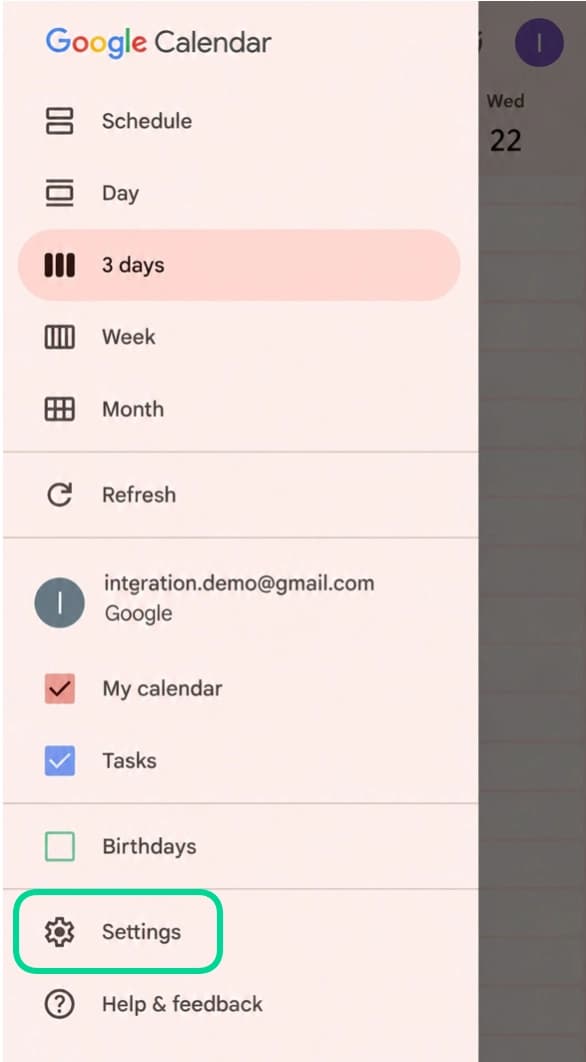
Open Settings
Scroll through the menu and choose Settings.
- 3
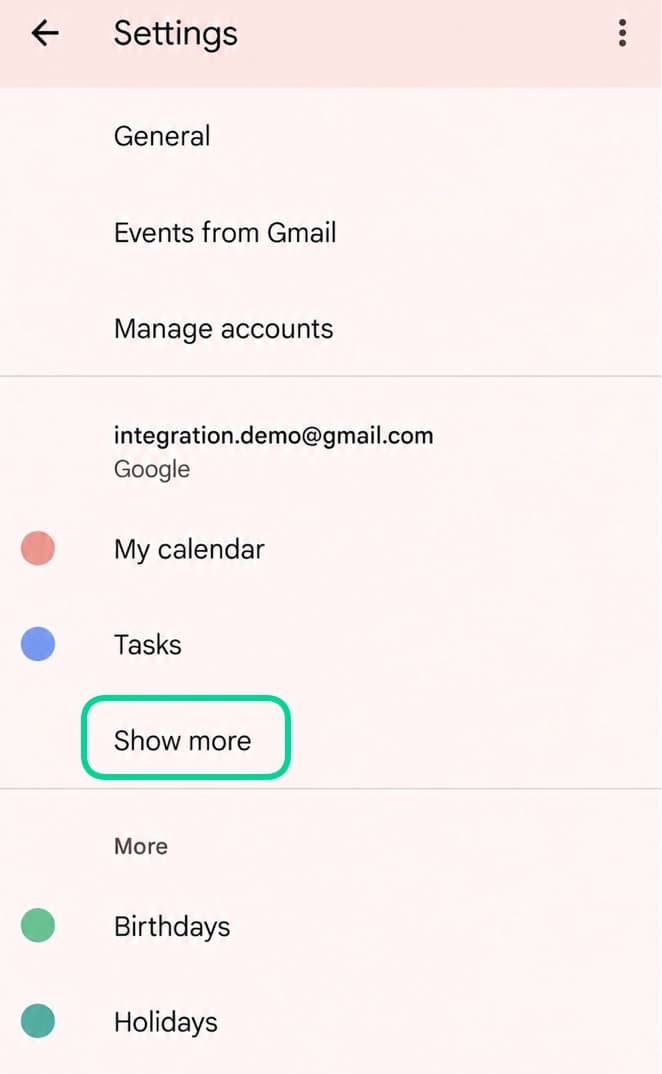
Show more calendars
If SportCalendar is not visible, choose Show more to reveal all calendars on your Google account.
- 4
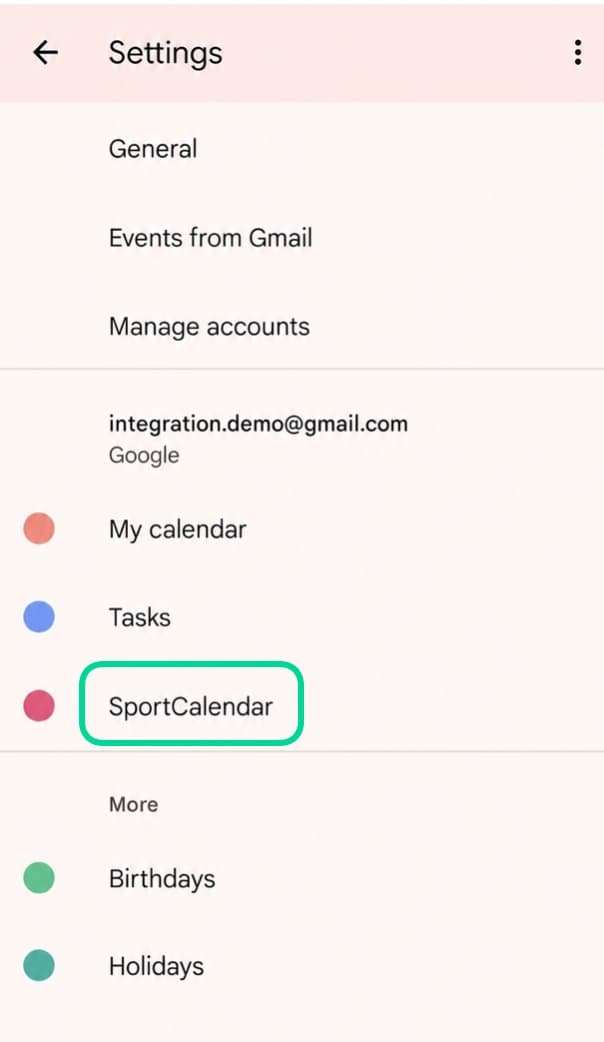
Open SportCalendar settings
Select SportCalendar to view its calendar settings.
- 5
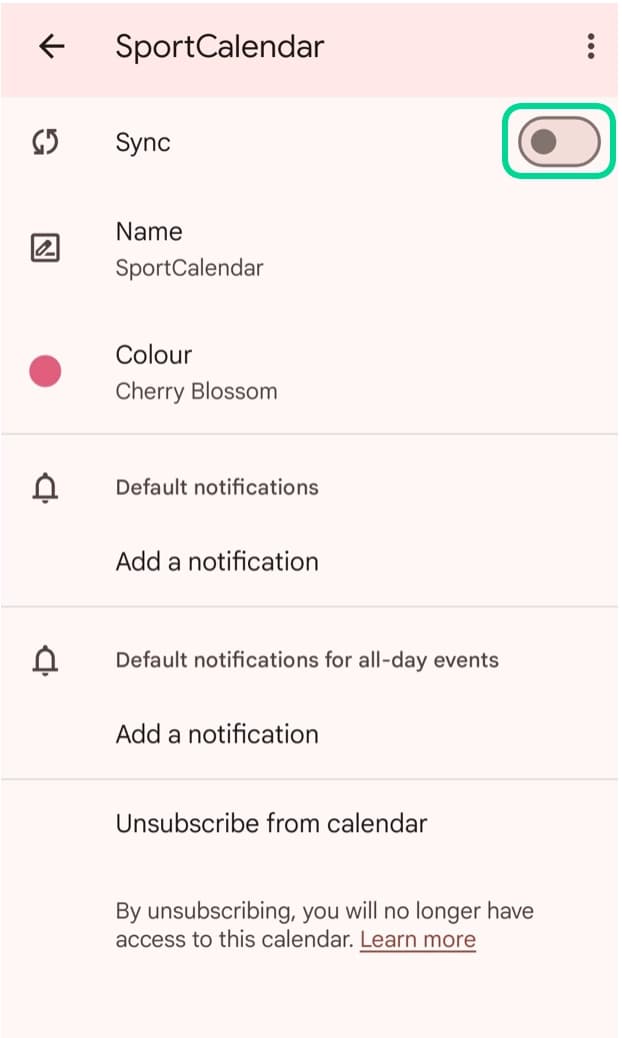
Turn Sync on
If the Sync toggle is off, switch it on so Google Calendar displays SportCalendar on this device.
- 6
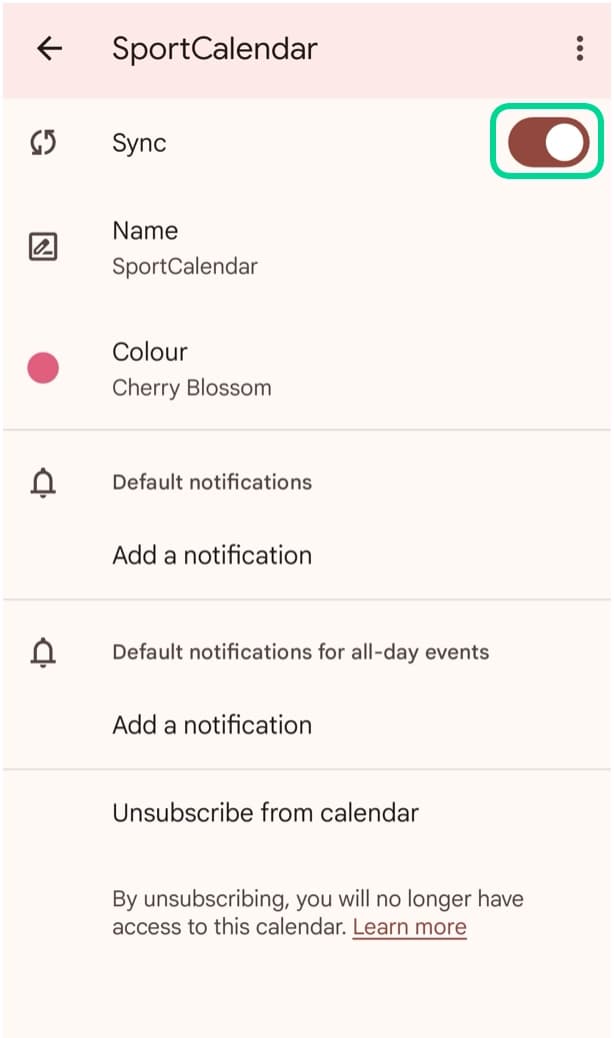
Confirm Sync is enabled
Once Sync is enabled, changes from your SportCalendar account can appear in Google Calendar after Google refreshes the subscription.
- 7
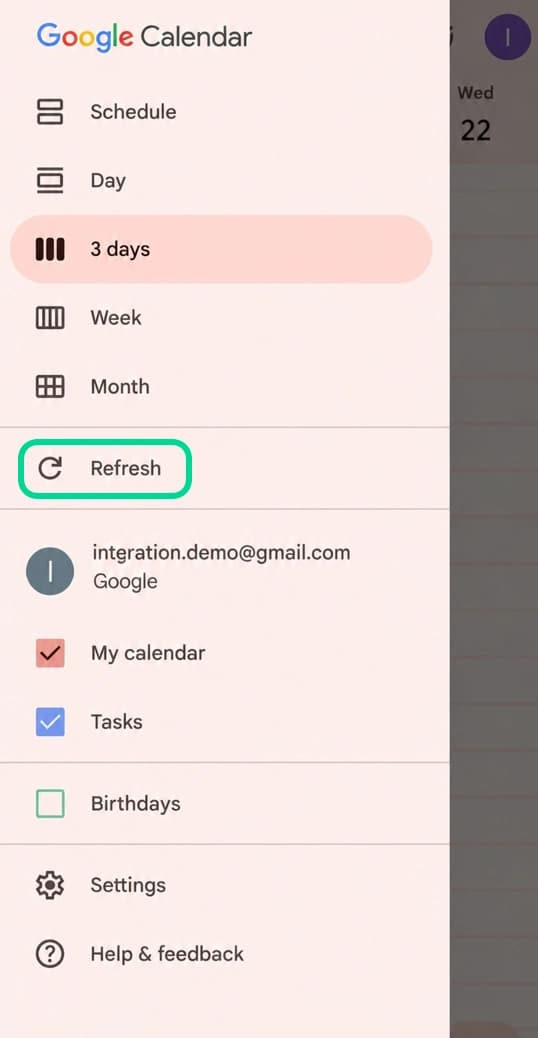
Refresh Google Calendar
Return to the calendar view and tap Refresh to ask the app to check for the latest calendar data.
Tips and important notes
Do not make it public
When adding the URL in Google Calendar, leave Make the calendar publicly accessible unticked.
Refresh timing
Google Calendar controls how often subscribed calendars refresh, so new fixture changes may not appear immediately.
Common questions
Why do I have to use a browser first?
The Google Calendar app does not currently support adding a subscribed calendar by URL. Add the SportCalendar ICS URL in Google Calendar in a browser first, then enable the calendar in the mobile app if needed.
Why can't I see SportCalendar on my Android phone?
Make sure the subscription was added to the same Google account used on your phone, open Google Calendar settings, choose Show more if needed, select SportCalendar and turn Sync on.
Why isn't my Google Calendar updating?
SportCalendar updates your calendar feed whenever your SportCalendar changes. Google Calendar then decides when to check the subscribed calendar again.
Read the refresh guideWhy is my calendar empty after adding it?
The calendar feed only contains fixtures from your SportCalendar rules and favourites. If you have not created rules or selected favourites yet, there may be nothing for Google Calendar to show.
Can I use the same subscription on multiple devices?
Yes. When the subscription is added to your Google account, it can appear on other devices signed in to that same account. Each mobile device may still need the SportCalendar calendar to be visible and synced.
Related articles
Still need help?
Browse more Help articles or return to the Help Centre to choose a different path.